
How Barcode Scanning Works With a Retail POS System
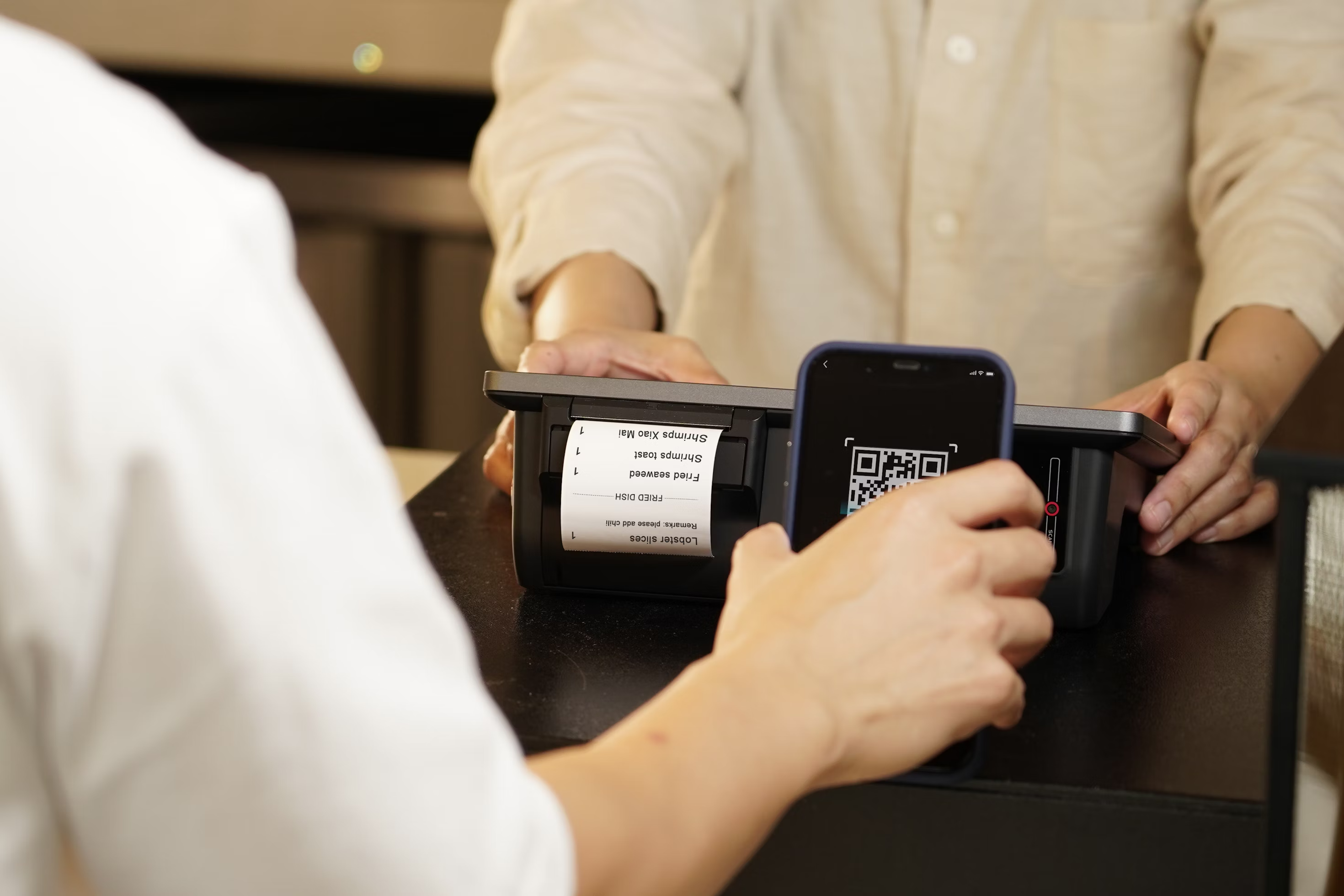
Have you ever wondered how a cashier scans a product and its name and price appear on the screen almost instantly?
That's barcode scanning at work.
A retail POS system with barcode scanning uses a scanner to read a product's barcode and find its details in the store's software. This helps cashiers add items to a sale without typing product names or prices by hand.
But barcode scanning does more than speed up checkout. It can also help retail businesses track inventory, receive new stock, and keep product records organized.
Let's look at how the process works and why it matters for your store.
What Does a Barcode Scanner Do in a POS System?
A barcode scanner is a device that reads the lines, spaces, or patterns printed on a product label. It turns those patterns into a code that the POS system can understand.
The POS then uses that code to find the matching product in its database.
For example, imagine you own a clothing store. A customer brings a shirt to the checkout counter. When the cashier scans the barcode, the POS looks up the shirt and displays its name and price.
One important thing to understand is that a regular retail barcode usually does not store the product's price. It identifies the item. The POS system gets its price from the store's product records.
You may also see terms like UPC (Universal Product Code) or EAN (European Article Number). These are common barcode formats used to identify products.
The main idea is simple: the barcode tells the POS which product to find, and the software provides the information needed for the sale.
How Does Barcode Scanning Work at Checkout?
Barcode scanning connects a physical product to its digital record in your retail POS system. Once the product is set up correctly, the checkout process takes only a few steps.
Step 1: The Product Is Added to the POS System
Before employees can scan a product, it needs a record in the POS software.
That record usually includes:
Product name and description.
Selling price.
Barcode number.
Product category.
Available stock quantity.
Applicable tax settings.
For products with different sizes or colors, each version may need its own barcode.
For example, a medium blue shirt and a large blue shirt should have separate codes if you need to track their stock individually.
Step 2: The Scanner Reads the Barcode
When a customer brings a product to the counter, the cashier points the barcode scanner at its label.
The scanner uses light or an image sensor to read the barcode pattern. It then turns that pattern into data and sends the code to the POS system.
This replaces the need to type the product's code manually.
Step 3: The POS Finds the Product
Once the POS receives the scanned code, it searches the product database for a match.
If the code matches a registered product, the software can display its name, price, and other details.
If the system cannot find a matching record, it may show an error or ask the cashier to search for the item manually.
That's why products must be entered correctly before scanning begins.
Step 4: The Item Is Added to the Sale
After finding the product, the POS adds it to the customer's shopping cart or checkout screen.
The cashier can scan more items, change quantities, or apply allowed discounts.
The system then calculates the bill using the store's saved prices and tax rules.
For example, if a customer buys two notebooks at $4.99 each, the POS calculates an item subtotal of $9.98 before any applicable taxes or discounts.
Step 5: The Sale Is Completed and Inventory Is Updated
The customer chooses a payment method, and the cashier completes the transaction.
In a POS system with connected inventory tracking, completing the sale updates the stock quantity.
For example:
Starting inventory: 12 notebooks.
Customer purchases: 1 notebook.
Remaining inventory: 11 notebooks.
This helps the store keep its sales and inventory records connected.
However, scanning an item into an unfinished cart does not always reduce inventory. The stock change usually happens when the sale is completed, according to the POS system's settings.
How Barcode Scanning Helps Manage Retail Inventory
Barcode scanning isn't only useful at checkout. It can also make inventory tasks easier.
Instead of typing long product numbers, staff can scan items while receiving deliveries, counting stock, or moving products between storage areas.
Receiving new products: When a supplier delivers items, employees can scan their barcodes and confirm the quantities received. The POS inventory records can then be updated with the new stock.
Counting store inventory: Staff can scan products on shelves and compare the physical count with the quantity saved in the system. This helps identify missing or extra items.
Moving products between locations: If your POS supports stock transfers, employees can record which products move from one store or storage area to another.
Processing returns: When a customer returns a product, a compatible POS can use its barcode to identify the item. The inventory is adjusted according to the return and restocking process.
These features can reduce manual data entry, but employees still need to record each action correctly.
For example, scanning a product during a stock count is not the same as selling it. The POS must know which task the employee is performing before changing inventory.
Types of Barcode Scanners Used With Retail POS Systems
Retail stores use different types of barcode scanners. The right choice depends on your products, checkout setup, and the POS software you use.
Scanner Type | How It Works | Common Use |
1D Barcode Scanner | Reads traditional barcodes made of lines and spaces | Everyday retail checkout |
2D Barcode Scanner | Reads traditional barcodes and compatible QR codes or other 2D patterns | Stores that use different barcode formats |
Mobile Camera Scanner | Uses a phone or tablet camera with supported POS software | Mobile stock checks and smaller retail setups |
Scanners can also connect in different ways.
A USB barcode scanner connects through a cable, making it useful at a fixed checkout counter.
A Bluetooth barcode scanner connects wirelessly to a compatible device. This can be helpful when employees need to move around the store.
Some POS applications also support scanning with a phone or tablet camera, so you may not need a separate scanner for every task.
Before buying hardware, check which scanners and barcode formats your POS provider supports. Not every scanner works with every POS system.
How to Set Up Barcode Scanning in Your Retail Store
Getting started with barcode scanning doesn't have to be complicated. The most important part is making sure your products, barcodes, and scanner work together.
1. Add your products to the POS.
Start by entering your product names, prices, stock quantities, and other details into the software.
2. Assign the correct barcodes.
Use existing manufacturer barcodes when supported, or create internal barcodes for products that need them.
Make sure each product version has the correct code so employees don't confuse similar items.
If your products need official GTINs or UPCs for wider retail distribution, obtain the appropriate identifiers through GS1 rather than treating an internal code as a registered one.
3. Print labels when needed.
Some products already have barcodes on their packaging. For others, you may need to print and attach your own labels.
Place each label where employees can scan it easily.
4. Connect your scanner.
Connect or pair a scanner that's compatible with your POS software. Follow the provider's setup instructions.
5. Test a few products.
Scan several items and check that the correct names, prices, and product versions appear.
Complete a test transaction using the provider's recommended process and check how the system handles inventory.
6. Train your employees.
Show staff how to scan products, handle unreadable codes, and check items that don't appear in the system.
Good product records and simple staff training can prevent many common problems later.
Common Barcode Scanning Problems and How to Fix Them
Barcode scanning can make checkout easier, but it won't always work perfectly.
Most common problems are related to labels, product records, or device connections.
The scanner cannot read the barcode.
Check whether the label is damaged, faded, folded, or covered. Try scanning it from another angle or using a clear replacement label.
The POS says the product is not found.
The barcode may be missing from the product database or linked to an incorrect record. Check the saved code and make sure it matches the label exactly.
The wrong product appears.
Look for duplicate or incorrectly assigned barcodes. Each code should point to the intended product or product version.
The price is incorrect.
Check the product's saved price and any active discounts or tax settings. The problem may be in the POS product record rather than the barcode scanner.
The inventory count is wrong.
Check whether all sales, returns, deliveries, and stock adjustments were recorded correctly. A missed scan or an unfinished transaction can create a difference between physical stock and POS records.
Regular inventory checks are still important, even when your business uses barcode scanning.
Make Retail Barcode Management Easier With Vertex POS
If you run a retail store in Jamaica, Queens, or another part of New York, barcode scanning can help you spend less time entering product information by hand.
At Vertex POS, we know that business owners need practical tools to manage products, stock, and daily sales without unnecessary steps.
Our barcode and inventory features are designed to support connected product workflows, including:
Generating barcodes for inventory items.
Linking existing supplier barcodes to product records.
Printing labels for products and batches.
Scanning incoming stock and inventory movements.
Reviewing scan records to help investigate errors.
Connecting stock activity with inventory management.
These tools help businesses organize product information and keep a clearer record of stock activity.
Whether you're preparing a new store or improving your current POS setup, our team can help you explore the available barcode features and review hardware compatibility for your business.
We're located in Jamaica, Queens, and work with businesses looking for easier ways to manage everyday operations.
Want to learn how barcode scanning could fit your store?
Explore our barcode and label printing features, visit Vertex POS, or call us at (929) 741-0550 to discuss your needs.
Frequently Asked Questions
If you're considering barcode scanning for your retail business, here are answers to a few common questions.
Can a POS system work with any barcode scanner?
No. Barcode scanners must be compatible with the POS software and the device you're using. Some systems support USB, Bluetooth, or camera-based scanning, but you should confirm compatibility before purchasing hardware.
Does barcode scanning automatically update inventory?
A POS system with inventory integration can update stock when a sale, delivery, or other inventory action is completed. Simply scanning an item does not always change its stock quantity. The update depends on the workflow and software settings.
Do barcodes contain product prices?
Most standard retail barcodes contain a product identifier rather than its selling price. The POS uses that identifier to find the current price in its product database. Some special-purpose barcodes can contain additional information, such as weight or price.
Can I use the barcodes already printed on products?
Yes, many retail POS systems can use manufacturer barcodes such as UPCs or EANs. You need to make sure the codes are linked to the correct products and supported by your scanner and software.
Do small retail stores need barcode scanning?
Barcode scanning can be useful for small stores, especially when they sell many different products. It can make checkout and stock counting easier. However, stores with only a few products may be able to manage without a dedicated scanner.



Ready to Grow Your Restaurant?
Discover why restaurants of every size trust Vertex to power their digital operations and customer experiences.